|
The Eloquence Java based dialog system implements a
Eloquence dialog server using the Java programming language.
Contents:
The Eloquence Java based dialog system (JDLG) is a Java application
which can run on all platforms which provide a Java 1.3 or 1.2 runtime
environment (JRE).
While you can install JDLG as an application on individual workstations
we recommend against this.
The recommended way to use JDLG is to put it on a central server.
- You need a web server. This is not only strongly recommended
for the JDLG but makes also a lot of sense for distributing
documentation in the Intranet.
We recommend to use the
Apache web server which is not only the most common used one
but also available for free and almost all platforms.
Conveniently it is included on the Eloquence CD-ROM media and
or can be downloaded from the
Eloquence FTP server.
- We recommend to use the Java WebStart(TM) utility to launch
the JDLG from a web page. This has the benefit that there is
a central location where application specific files which are
required by the client side (such as icons or online documentation)
need to be provided and are accessible without configuring
each client system.
- The web server could also be used to distribute the Java
runtime in the Intranet. Simply download a copy from the
Internet (the B.07.00 Eloquence CD-ROM media will also include
a copy), place them in a directory accessible from the web server
and you are done.
- Finally, a web server should be considered apart of the
common infrastructure in a network. You are likely to find
additional ways of making good use of it besides JDLG.
The Eloquence Java based dialog system (JDLG) does not make use of
the Java Runtime included in your Browser (or which comes with the
operating system) because it is either outdated (based on Java 1.0
or 1.1 versions) or possibly incompatible (Microsoft).
For this reason the installation of the Java Runtime Envionment (JRE)
1.3.1_04 is required, or when 1.3.1_04 is not available for your plattform,
1.2.2. In addition the Java WebStart(TM) utilty is required to launch the
Eloquence Java based Dialog System from a web browser. Other versions or
implementations of the Java runtime have not been tested.
The Eloquence Java based dialog system can be executed in
different ways:
-
It can run as an Application started from the command
line or the desktop (by a shortcut)
-
It can be launched with the WebStart tool through a web link.
For either option the Java Runtime Environment is needed.
On the Linux and Window platforms the JRE needs to be installed before the
WebStart tool.
The Java runtime is available for download at the following location:
The WebStart packages are available for download at the location:
For platforms besides Windows and Linux these packages are available from
the respective platform vendor.
Installation on the Windows platform
Below is a short summary of the installation instructions. For detailed
descriptions please follow the installation instructions of the package.
- Download the 1.3.1_04 version of the JRE from the specified location.
- Install it on the machine.
- Reboot the machine.
- Download the WebStart package from the specified location (ca. 700 kB).
- Execute the
javaws-1_0_1_02-win-int.exe. It installs the
package and configures your browser.
Installation on the Linux platform
Below is a short summary of the installation instructions. For detailed
descriptions please follow the installation instructions of the packages.
- Java Runtime System
- Download the Java runtime from the specified location
j2re-1_3_1_04-linux.bin (ca. 15 MB).
- Move the archive file to
/usr/local/java and extract
the archive. The result is the subdirectory jre1.3.1_04
which contains the Java VM in the bin directory.
Please note that you need a recent Linux 2.2 kernel and a
glibc2.1 or glibc2.2 based system.
- Append
/usr/local/java/jre1.3.1_04/bin to the
PATH environment variable system wide in the
/etc/profile file. Define the JAVA_HOME
variable with the directory of the JRE like
/usr/local/java/jre1.3.1_04, too.
- WebStart
- Download the package from the specified location
javaws-1_0_1_02-linux-int.zip (ca. 1MB).
- Move to the users home directory and unpack the zip archive
with the command
unzip javaws-1_0_1-linux-int.zip
- Execute the
install.sh shell script.
Verifying the installation
After the installation has been completed you can test the Java Runtime
Environment by executing the command
java -version
on the command line (or the DOS Box under Windows) which results in an output
like
java version "1.3.1_04"
Java(TM) 2 Runtime Environment, Standard Edition (build 1.3.1_04-b02)
Java HotSpot(TM) Client VM (build 1.3.1_04-b02, mixed mode)
The WebStart tool can be started on Windows through the short cut on
the desktop or the Program menu.
On Linux the WebStart tool can be executed with the command
$HOME/javaws/javaws &
After the installation of the Java runtime has been completed you may
want to try the example application (please refer to the
separate document).
Note: Under SuSe 7.1 or 7.2 using a Java Runtime Environment with Version
1.3.1_X may result in a Segmentation Fault during start up time. You can resolve
the problem by executing the command
$> ulimit -s 2048
before starting JDLG the first time. It is advisable not using these systems for
clients in a productive environment!
After Installation of the Java runtime you can execute the Eloquence
dialog system as an application by executing the command below:
java -jar jdlgS.jar
where jdlgS.jar is the name of the JDLG System JAR archive.
Under Windows operating systems it is also possible to activate JDLG with a
double mouse click onto the JAR file. Then it is started without any options.
Another way to start JDLG under the Windows platform is using the command
javaw instead of java which is also located in the
JRE bin directory. The difference is that the first command does
not open a MS-DOS Box Window which might be undesirable.
After you've started the system its console apears onto your screen.
The Java WebStart tool makes it possible to start a Java application (such as
JDLG) from a web browser. Previously a web browser was restricted to Java
applets. This had the disadvantage that the applet was terminated when the
browser was closed (or crashed) or another web page was loaded in the same
browser window.
Java WebStart provides the ability to use the web browser to launch
JDLG as an application which is no longer bound to it once it is running.
The difference to the applet solution is that the application runs in a separate
virtual machine outside the browser and web navigation or browser crashes do not
longer affect the dialog system.
A detailed description of the Java WebStart tool and its configuration
can be found at the location
http://java.sun.com/products/javawebstart/.
In order to use WebStart the following steps must be performed
-
Configure the MIME type of the JNLP file to the web server
as described below.
-
Place the JDLG files along with the configuration files in a
directory which is reachable with your web server.
-
Modify the
jdlg.jnlp configuration file as described below.
-
If logging is required, modify the
JEloq.cfg configuration file
as described below.
-
If JDLG should be able to start Eloquence applications on the
server you need to create a configuration to describe the
available Eloquence applications as described below.
Configuring the Web Server for WebStart
The WebStart tool uses a JNLP file which describes the Java application
(eg. description, name of the JAR archive).
The web server must be configured to recognize the JNLP file
as a new MIME type.
For the Apache web server the line
AddType application/x-java-jnlp-file .jnlp
needs to be added to the file /etc/opt/apache/httpd.conf.
After that the Web Server should be restarted.
To distribute the dialog system in your Intranet or over the Internet
the following files are needed and should be placed in a directory
reachable with your web server:
-
The
jdlg.jnlp file which contains the information used by the
WebStart utility.
-
The
jdlgS.jar file which contains the JDLG class files.
-
The
JEloq.cfg file. This is optional and contains configuration
settings for the dialog system.
-
The
Application.cfg file. This file is used to provide a list of
available applications to the JDLG client. This file is optional (please refer
to section Starting Eloquence Applications from
JDLG for details).
The JNLP file has the following content:
<?xml version="1.0"?>

<jnlp codebase="http://yourwebserver/jdlgdir"
         href="jdlg.jnlp">

  <information>
    <title>Eloquence Java based Dialog System</title>
    <vendor>Marxmeier Software AG</vendor>
    <homepage href="http://www.marxmeier.com"/>
    <description>
      Eloquence Java based Dialog Server
    </description>
    <description kind="short">
      Java based Dialog Server
    </description>
    <icon href="eqlogo-150.gif"/>
  </information>

  <security>
    <all-permissions/>
  </security>

  <resources>

    <j2se version="1.4.2+"/>

    <jar href="jdlgS.jar" main="true"/>

    <property name="eloquence.config.url"
        value="http://yourwebserver/appldir/JEloq.cfg"/>
    <property name="eloquence.config.helpbaseurl"
        value="http://yourwebserver/docbasedir"/>

  </resources>

  <application-desc/>

</jnlp>
You can find an example file jdlg.jnlp in the
examples/config directory. The elements have the following
meaning:
-
The
codebase attribute in the jnlp element
should point to the directory on your Web Server which contains the
files. This needs to be changed to the appropriate value for your
site.
-
The
information describes the JDLG application
and should be left untouched.
-
The
security tag allows the dialog system to open the graphic
device. WebStart will ask you the first time if you'll trust the application.
Please do not change this element otherwise the JDLG will not work correctly.
-
The
j2se element allows the system to be executed in a Java
Runtime Environment of version 1.4.2 or above (the highest installed version
is used).
-
The
jar element tells the system which JAR archive should be
downloaded by the WebStart client and provide the name of the JDLG archive
which is located in the same directory as the JNLP file.
Please note that the path in the codebase attribute and the
path in the href attribute are implicietly concatinated with a
'/' between and must provide the absolute URL to the JAR
archive.
The main attributes says that the JAR contains an entry point
class and should be left untouched.
-
The
property element defines system properties which are
passed to the virtual machine. Here the URL property is set which is used
to locate the dialog system configuration file.
This value must be changed to the appropriate value for your site if you
want to have a config file active.
-
The
application-desc element says that we want to start an
application.
Please modify or create the JNLP file as described above.
After the JNLP MIME type has been added to the web server and the JNLP file has
been created a web browser can be used to launch the JDLG application. Use an
absolute URL to the JNLP file like
http://yourhost/jdlgdir/jdlg.jnlp.
The browser will start the WebStart client (because the web server
responds with the JNLP MIME type) and WebStart will then load the
JAR archive and start the execution of the dialog system.
Please note: If your Browser uses a Proxy in its
configuration you need to check the WebStart Proxy configuration too. Doing this,
launch the WebStart Application manager from the program start menu (Windows) or
from the local $HOME/javaws/javaws directory(Linux). Go to the
Program menu and open the preference dialog. On the
General tabulator you'll find the setting for the proxy
configuration. For details please consult the WebStart documentation which is
in the installation directory.
In previous releases of the Java based Dialog System we have used the connection
mechanism of the runsrv protocol which is implemented in a
simplified server inside JDLG.
This resulted in the fact that no original runsrv process could
run in parallel with JDLG. As a result of this circumstance and that some
features of the runsrv server are not implemented in JDLG e.g. the
DDE commands under Windows platforms had caused problems for
existing Eloquence applications.
To resolve these problems we had implemented a new connection mechanism in the
current release which is also available in eloqcore
A.06.31 and above.
A.06.31 Connections
For these implementations the .driver syntax has been changed. To
connect to JDLG you can use the following statements, they are all equivalent:
DLG SET ".driver", "yourhost"

DLG SET ".driver", "dlg://yourhost"
The first statement looks very similar to the old style. Please note the
essential difference that the hostname is no longer prefixed with the
@ sign!
The second and third form is our new URI syntax to identify the driver. The
dlg string defines that we want to use the new mechanism. After the
two slashes the hostname to which we want to connect is defined.
The JDLG system listens to the default dlgsrv port - which has the
number 8011 - and waits for new connections of
eloqcore processes. You do not need to configure anything on the
JDLG side because this is the new default behaviour. Instead you need to change
your
DLG SET ".driver", "@yourhost"
statements to
DLG SET ".driver", "yourhost"
(The A.06.31 release notes show you an other way to change your
driver statement.).
A.06.30 Connections
In such a scenario the user of JDLG has no other opportunity as running the
minimal runsrv inside the system. Unfortunatly it is not possible
to use the features of the original RUNSRV implementation.
The (re)activation of the minimal runsrv server inside JDLG could
be done with the setting of a property. The simplest form is the usage of a
system property on the command line during the start up time of JDLG as shown
below:
java -Deloquence.config.runsrv.port=8010 -jar jdlgS.jar
After starting JDLG with this option the eloqcore processes can
connect to JDLG in the well known manner.
Please note: The minimal RUNSRV implementation might be removed in
the future.
The Eloquence Dialog System allows to specify configuration
settings with a configuration file. In addition to define the default font
size and face it also allows to specify debug options in case of trouble.
When executing as an application it can be specified on the command line,
when running in the WebStart context it can be specified as a parameter for an
URL in the JNLP file as shown above.
The config file is a text file which contains the property and
value pairs (see at the bottom of this document for a list of
valid properties). All text after a # character is
considered a comment.
For example:
# Sample config file
eloquence.config.defaultfont.name = DialogInput
eloquence.config.defaultfont.size = 12
In this example, a default DialogInput font with a
12pt size is specified.
The example below activates some debug options and could be used
for trouble shooting. When running as an application the log is
written to the file C:/temp/jdlg.log.
# Sample config file

# Write debug log to a file
eloquence.config.log = C:/temp/jdlg.log

# Activate the option below to enable output to Java Console.
#eloquence.config.trace = true

# Enable tracing of network messages in the dialog protocol
eloquence.trace.com.eloquence.services.protocols.Dialog.trace = true

# Enable tracing of events and rule processing
#eloquence.trace.com.eloquence.services.jdlg.controls.trace = true

# Enable tracing of the controls manager
#eloquence.trace.com.eloquence.services.jdlg.trace = true
Using a config file with an Application
If you start the Java Dialog System as an application the config file
can be specified on the command line:
java -Deloquence.config.file=JEloq.cfg -jar jdlgS.jar
where -Deloquence.config.file=JEloq.cfg specifies to
use the file JEloq.cfg as a parameter file. The file JEloq.cfg
can be either a relative or an absolute path.
Please note: The order of the command line parameters are
significant. If the -D option whould appear after the
-jar jdlgS.jar options the virtual machine would not use
it for itself. It would send it to the application as an argument. As the
result the config file would not be read.
Using a config file in the WebStart context
As an alternative it is allowed to pass the property
eloquence.config.url to the virtual machine. Then the file will
read from the given URL. This is the preferred way loading the configuration
from your central managed web server. Please, see also the
JNLP section above.
The Option Reference
Globals
- eloquence.config.file
-
- Example value
/a/path/to/a/config/file.cfg
It is a path to a config file which contains more
options. If you use a relative path then the path starts in
the working directory of the process.
- eloquence.config.url
-
- Example value
http://www.yourserver.net/JEloq.cfg
It is an URL to a file on a web server which contains more configurations.
You can use it in the application environment but it is mostly useful in the
WebStart environment.
- eloquence.config.sessions
-
- Example value
http://www.yourserver.net/Applications.cfg
It is an URL to a file on a web server. It contains information about
Applications which can be started remotely with the dialog system.
- eloquence.config.log
-
- Example value
/a/path/to/a/log/file.log
This is a path to a file where tracing messages are written in.
- eloquence.config.lookandfeel
-
- Value
system | java
This property allows the usage of another look and feel as the platform
defines. The default is the system value which means that under
Linux the Java L&F and under Windows the native Windows L&F is in
use. Under Windows the value java will set the Java L&F.
- theme
-
- Value
- A string which is an URL and points to a theme property file.
This property allows to point to file which contains color and property
values. These values configures the appearance of the JDLG application if
the java look and feel is active. You can find an example file
in the examples/config directory. Please note: this only
works with the java look and feel!
- eloquence.config.logoicon
-
- Example value
http://your.server.net/images/logo-20.gif
This property sets the icon which appears in all windows on the upper left
corner and in the system task bar. Please note if you set this here the system
frames like the console window, the session window or the active dialogs
window will get this icon too. So if you want to have on icon for the entire
system you should configure it in the JEloq.cfg file. The
Dialog.logoicon property overlays this value.
- eloquence.config.trace
-
- Value
true | false
If it is set to true the log stream will not be associated
with the log property value. Instead the system error stream
will be used. This option overlays the log option!
- eloquence.config.syswin
-
- Value
iconified | deiconified
deiconified is the default value it means that
the system window starts deiconified. As a result you can see it
as a window on your desktop. In the other case the window will be
seen in the program bar iconified.
- eloquence.config.defaultfont.name
-
- Values
- Either a logical font name (
Serif,
SansSerif, Monospaced, Dialog
or DialogInput) or a platform specific font
such as Courier or Helvetica
(which may not be present on all client systems).
This font will be used for all controls during execution. Default is
DialogInput
- eloquence.config.defaultfont.size
-
- Value
- positive integer, e.g.
14 for 14pt.
It is the point size of the font which will be used during the execution time.
The default is 12pt.
- eloquence.config.dlg.port
-
- Value
- positive integer e.g.
8011.
This is the port on which the new dlg protocol server listens to. The default
is 8011.
The old runsrv connection mechanism will be replaced with this connection
protocol from Eloquence A.06.31 on, please see
above. Per default the dlg connection protocol is activated and the runsrv
protocol is deactivated. To run a runsrv in parallel set a port for it with a
command line property or with a property in your configuration file.
- eloquence.config.runsrv.port
-
- Value
- positive integer e.g.
8010.
This is the port on which our minimal Runsrv server listens to. The default is
8010. Please note that you cannot execute a second RUNSRV process
on the same port on the same machine.
Tracing
The system has multiple modules and for most of them you are
able to specify if you want to have a tracing output or not.
Please keep in your mind that tracing is an expensive operation.
(During the development process we had a factor of up to 40
when enabling all tracing options!).
Tracing Configuration Dialog
To simplify the tracing process we had implemented a configuration dialog in the
current version:
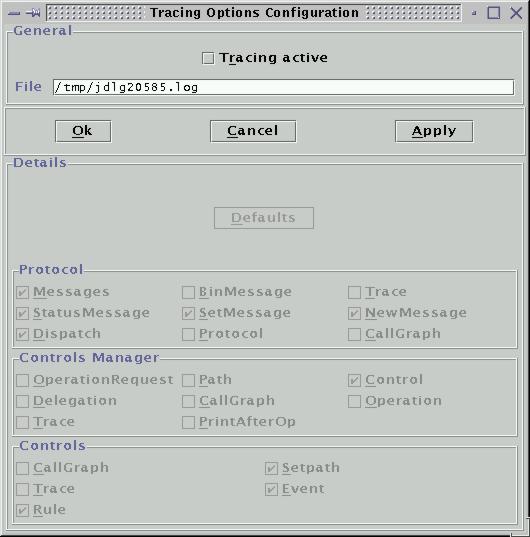 After you have started the JDLG System you can run the tracing configuration
task by activating the
After you have started the JDLG System you can run the tracing configuration
task by activating the Tracing command in the Program
menu. A Dialog as show to the right appears.
The most important elements in the dialog are the Checkbox with the title
Tracing active, the Edittext field named with File,
the Ok, Cancel and Apply buttons and the
Default Button.
You can activate the tracing by changing the state of the Checkbox to true which
is indicated through a tick and confirming it with a click onto the
Apply Button. Then the tracing sub system writes to the file
displayed in the File Textfield. The dialog will not be disposed
and you can reuse it to stop the tracing. Doing this change the Checkboxes state
and confirm it again.
The Ok Button confirms your changes as the Apply
Button does and closes the dialog. The Cancel Button left the
current state of the tracing system untouched and closes the dialog.
As you have observed, setting the Checkbox allowes the user to modify or use the
elements in the Details area of the dialog. It is devided into four
parts. The first which holds the Default Button and the three
Panels for the different sub systems of the tracing system.
The Default Button sets the options of all sub systems to a state
which is helpful for the Eloquence support team to find out what kind of
problem you might have. Please use these settings if you report a problem to
us and use it as a start point for your own tracing work. The meaning of each
option is described below in the Tracing Options
Reference, please consult it before you will start with your own
experiments.
In the following paragraphs we will give you an introduction of the tracing
messages layout and show you when and how you can use the tracing function.
Observing a DLG LOAD Operation
A single LOAD command results in hundres or thousands of
NEW and SET operations over the protocol. Each will be
acknowledged by a STATUS Message if the program works in the
synchron mode.
In the tracing file you can see each operation and its status response if the
Protocol sub system is activated. For the described messages the
Checkbox for NewMessage, SetMessage,
StatusMessage, Messages and Trace needs
to be in a marked state in the Panel.
Here an example for an initial new operation for a dialog:
- - - trace at 2001-07-02 12:35:04.523
      in thread lxsrv.marxmeier.com/194.64.71.81:2138 prio=5 - - -
  ProtocolMessage
  DialogClassic.run
    ErrorCode=DLG_OK
    MessageCode=DMDRV_NEW
    Path=window
    Type=dialog
Each tracing message starts with a line which contains the timestamp when it was
created. It also contains the session name
(here lxsrv.marxmeier.com) to which it corresponds to. The
information is the same which you can find in the Session dialog.
The next three lines are not necessary. More important is the fourth, it says
which message we got. Here the NEW command. The fifth line
indicates the name of the Eloquence control and the sixth defines the requested
type.
In dlg file syntax it is the same as:
dialog window {
..
}
The response of such a request will be a status message with the layout:
- - - trace at 2001-07-02 12:35:04.53
      in thread lxsrv.marxmeier.com/194.64.71.81:2138 prio=5 - - -
  ProtocolMessage
  DialogClassic.run
    ErrorCode=DLG_OK
    MessageCode=DMDRV_STATUS
    StatusCode=DLG_OK
The first line has the same information as described above and the significant
informations for you are in the last line and in the line before.
The second last line contains the message type STATUS the last
shows the error code which shall be DLG_OK. If it has any other
value, it has a name which you can find in our error code list prefixed with a
DLG_ string like DLG_DUPL for a duplicated control.
Please consult this document for further error explanations.
As you might have observed there is no path in the status response message. This
causes a specific procedure to find corresponding messages:
- Search for a
NEW operation and remember the session name.
- Search for the next status message which has the same session name as the
NEW operation has.
- Take a look to the
StatusCode field which says if the
operation had been executed correctly or not.
Apply the same procedure to find out if a SET Messages as been
worked or not. It has the following form:
- - - trace at 2001-07-02 12:35:04.535
      in thread lxsrv.marxmeier.com/194.64.71.81:2138 prio=5 - - -
  ProtocolMessage
  DialogClassic.run
    ErrorCode=DLG_OK
    MessageCode=DMDRV_SET
    Path=window.bgimage
    Value=[Type=STRING, Value=http://lxsrv/nova/image/bg.jpg]
The MessageCode line indicates that we're having a
SET operation. The second last line describes the path to the
control and its attribute. The last line contains the value to which the
attribute shall be set. In our example the command sets the
.bgimage attribute of the window dialog to the string
http://lxsrv/nova/image/bg.jpg. This is equivalent to the second
line of the following dlg file:
dialog window {
  .bgimage = "http://lxsrv/nova/image/bg.jpg"
  ...
}
A corresponding status message will appear after the SET message
in the log file and has the same form as desribed above in the NEW
command section.
If you want to track different DLG LOAD commands you can apply the
following procedure for generating appropriate log files:
- Start JDLG and run the tracing configuration dialog.
- Start
eloqcore and connect to JDLG.
- Set the filename input field to a desciptive name.
- Activate the tracing.
- Execute the
DLG LOAD command.
- Stop the tracing.
Repeat from 3 to 6 for each LOAD operation you like
to track.
Observe a problem in a deep level of the program.
Sometimes you want to find out what is going wrong in a Dialog which is called
and shown in a deep level of the programs execution path. It is not a good
idea start tracing from the beginning of the program because this produces a lot
of message you do not want to see. They will confuse you and do not help finding
the problem.
To avoid this activate the tracing as follows:
- Start JDLG.
- Start your application.
- Go to the point in the execution path before the operation you want to trace.
- Activate the tracing.
- Reproduce the problem in the dialog.
- Stop the tracing.
If you are working in that way you will get tracing log files which are smaller
and more informative. They concentrate the information of the problem and do not
overwhelm you with unneccessary data.
A last a hint to log files if you send them to anybody over the Internet: Please
compress them with ZIP or GZIP if they had become bigger than 100 kBytes. The
SysAdmin community will thank you that.
Tracing Options Reference
Each of the shown option in the tracing dialog might have a property value in a
configuration file which is used to set up tracing with it. The name of the
option in the dialog is the same as the last part of the properties name. The
value of a property might have the state true or
false. Where the first turns it on and the last turns it of. The
list below explains the meaning of each option.
- trace
-
Setting this property as a command line property all default tracing options
will be actived.
- eloquence.trace.com.eloquence.services.jdlg.trace
-
It is the main switch for the Controls Manager module. If it is
false all options with the same prefix are off too.
- eloquence.trace.com.eloquence.services.jdlg.control
-
Tells what the system does with the control. When it will be created or
inserted to a parent node for example.
- eloquence.trace.com.eloquence.services.jdlg.printAfterOp
-
This prints out the state of all controls after an operation. Very expensive!
- eloquence.trace.com.eloquence.services.jdlg.path
-
Shows how the system resolves a path. Expensive.
- eloquence.trace.com.eloquence.services.jdlg.operation
-
Shows which operation in the Controls Manager was requested.
- eloquence.trace.com.eloquence.services.jdlg.controls.trace
-
It is the main flag for the input events of the Eloquence controls. If it
is false all options with the same prefix are off too.
- eloquence.trace.com.eloquence.services.jdlg.controls.event
-
Shows which control got what kind of event.
- eloquence.trace.com.eloquence.services.jdlg.controls.rule
-
Shows which rule was executed.
- eloquence.trace.com.eloquence.services.jdlg.controls.setpath
-
Shows which control gets the focus after executing the DLG DO or
DLG DRAW command.
- eloquence.trace.com.eloquence.services.protocols.Dialog.trace
-
Shows the behavior of the dialog protocol module. If it is false
all options with the same prefix are off too.
- eloquence.trace.com.eloquence.services.protocols.Dialog.protocol
-
Shows the protocols state.
- eloquence.trace.com.eloquence.services.protocols.Dialog.messages
-
Is a switch which disables (value is false) or enables the next
three options generally.
- eloquence.trace.com.eloquence.services.protocols.Dialog.newMessage
-
Shows every new message in the system. Corresponds to DLG NEW.
- eloquence.trace.com.eloquence.services.protocols.Dialog.setMessage
-
Shows every set operation in the system. Corresponds to DLG SET.
- eloquence.trace.com.eloquence.services.protocols.Dialog.statusMessage
-
Shows every operation status message. This occures not during async mode.
- eloquence.trace.com.eloquence.services.protocols.Dialog.dispatch
-
Shows when the protocol gives the execution thread to the Controls Manager.
eloquence.trace.com.eloquence.services.protocols.runserv.trace
It is the master switch for the RUNSRV protocol module. If it is
false all options with the same prefix are off too.
- eloquence.trace.com.eloquence.services.protocols.runserv.protocol
-
Shows the state of the RUNSRV protocol.
- eloquence.trace.com.eloquence.services.protocols.runserv.messages
-
Shows the network messages we received.
The implementation of the Dialog Help Sub System in JDLG uses the
web browser on the client system. If the JDLG Server was launched
from the WebStart utility no configuration is needed. In the case
JDLG is executed as an application the web browser may need to be
configured in case the default does not work.
There are two ways to activate the Help Sub System which both result
in an URL string. This string is then be send to the web browser
which will load the requested document.
The description how the string will be created follows in the next
two paragraphs.
The .rule=-1 Activation
When a .rule with an associated value of -1 is executed, the context
sensitive help is requested instead of returning to the application.
The URL to the help document is constructed by concatenating the
contents of the .help attribute of the current control
and its parent controls.
For Example:
dialog main
{
  .help = "/main"

  GroupBox first {

    .help = "/firstgroup.html"

    PushButton run {

      .help = "#runbutton"
      .rule = -1
    }
  }
}
The result if the PushButton has the focus is the relative URL
/main/firstgroup.html#runbutton.
Afterwards the values of the Application.helpbaseurl
and System.helpbaseurl attributes are prepended to create the
final help document address. The Application object is session
specific and has no default value for the attribute. The System
object exists during the entire execution time of JDLG and is defined in
the configuration file.
Assuming the Application.helpbaseurl is defined as
/CalcAppl and System.helpbaseurl is defined as
http://your.server.net the final help document address is
http://your.server.net/CalcAppl/main/firstgroup.html#runbutton.
The DLG HELP Command Activation
This command has the syntax
DLG HELP "helptext.html"
The strings passed to DLG HELP is appended to the
System.helpbase and Application.helpbaseurl strings.
The URL is passed to the browser.
Assuming the Application.helpbaseurl is defined as
/CalcAppl and System.helpbaseurl is defined as
http://your.server.net the final help document address is
http://your.server.net/CalcAppl/helptext.html.
The Browser Activation
After the system has created the URL string it invokes the browser. This
software is a platform specific program like
Netscapes Communicator or
Microsofts Internet Explorer.
If JDLG was started in the WebStart environment the activation will be
delegated to the browser directly on non Windows platforms. In this case nothing
needs to be configured.
If JDLG runs as an appplication (or on Windows under WebStart) it creates a
process with a command line string which needs to be configured because it's
platform specific.
For this task the eloquence.help.cmdpre and
eloquence.help.cmdpost properties in the config file are used.
Windows
For the Windows operating system family they have following predefined values:
| Name |
Value |
eloquence.help.cmdpre |
rundll32 url.dll,FileProtocolHandler
|
eloquence.help.cmdpost |
|
The rundll32 command sends the URL to the function
FileProtocolHandler in the url.dll library. On Windows
98, NT, 2000 and XP this invokes the default browser.
Known problems like MS-DOS
Windows appearances or hang ups with the old approach do not occure now.
Linux
Under this system we are using Netscape Communicators
remote invokation API.
So the properties are having other default values:
| Name |
Meaning |
eloquence.help.cmdpre |
netscape -remote openURL( |
eloquence.help.cmdpost |
)
|
The command string which is used by JDLG has the form
netscape -remote openURL(http://your.server.net/CalcAppl/helptag.html).
The meaning is that a Communicator will present the URL in the last active
window.
Important under this operating system is that the Communicator process is
running before JDLG sends the first request to it. Otherwise nothing will happen
onto your end users screen. The Communicator must also be reachable via the
PATH environment variable of the Java VM which is used for JDLG.
Direct Activation of an HTTP Request
Under some circumstances you do not want to use the help system. Instead you
want to present the end user a HTML page in a browser. For this task the
Application object has a the attribute browser. The
command
DLG SET "Application.browser","http://www.marxmeier.com";Rc
would introduce JDLG to send the link http://www.marxmeier.com
to the browser which loads and displays it for us.
The configuration of the systemwide Help Path Base
The last option we want to present in this paragraph is the definition of the
system wide base path URL in the System object.
The usage of this attribute is the definition of the absolute starting point for
the help documentation. You can do with the property in the configuration file:
| Name |
Meaning |
eloquence.config.helpbaseurl |
An URL (Prefix)String for the absolute base of the help documentation files
e.g. http://onlinedoc.server.net/users/documentation. |
Starting Eloquence Applications from JDLG
The Java based Dialog system is able to launch Eloquence
applications by using the eloqsd server.
When configured, a list of available Eloquence applications
is displayed in the JDLG console window.
The Eloquence applications are configured in a separeate file
which is specified with the eloquence.config.sessions property.
The application configuration file defines settings for each
application as shown in the example below.
#
# The first application
#
catalogApp.name          = Catalog Application
catalogApp.icon          = http://yourserver/images/catalog.gif
catalogApp.server        = yourserver
catalogApp.login         = TheUser
catalogApp.startdir      = /opt/catalogapp
catalogApp.parameter.0   = -bg
catalogApp.parameter.1   = -log
catalogApp.parameter.2   = /tmp/catalog.log
catalogApp.parameter.3   = Catalog
catalogApp.parameter.4   = -dlg
catalogApp.parameter.5   = $host:$port
catalogApp.environment.0 = LOGINNAME=$login
#
# The second application
#
catalogDebug.name          = Catalog Application (Debug)
catalogDebug.icon          = http://yourserver/images/catalog.gif
catalogDebug.server        = yourserver
catalogDebug.serverport    = 8022
catalagDebug.debugmode     = true
catalogDebug.startdir      = /opt/catalogappdebug
catalogDebug.parameter.0   = -d*3
catalogDebug.parameter.1   = -bg
catalogDebug.parameter.2   = -t3
catalogDebug.parameter.3   = -log
catalogDebug.parameter.4   = /tmp/catalogDebug.log
catalogDebug.parameter.5   = Catalog
catalogDebug.environment.0 = DRIVER=$host
The first part of a property key must be unique for each application.
You can use any value for it.
The second part of a property key is a parameter name which is then
used by the dialog system.
Properties
| Name |
Value Type |
Description |
| name |
String |
The value will be shown as the application title in the application
selection list. To use HTML attributes it must be enclosed in
<html>...</html> tags. |
| icon |
String |
URL or local file name of an image (e.g. .gif or .jpeg file). This
image is displayed in front of the application title. |
| server |
String |
This is the host name or IP address of the machine where
the eloqsd server runs on. |
serverport |
Integer |
Defnes the server port to which JDLG connects to. The default value is
8100 |
| login |
String |
This is the user login name on the eloqsd side. If it is not set, the user
JDLG is set with a password of JDLG. This allows the
implementation of an "anonymous" login by configurating the JDLG
user in the eloqsd.user configuration file.
|
| debugmode |
String |
Allowed values are true | false. If it is set to
true, the eloqcore process on the server side will be started in
the debug mode which reports errors during runtime. Usefull during system
configuration. If it is set to false it starts eloqcore in normal
execution mode which does not report any errors.
|
startdir |
String |
This is a system specific path which will be used
by the eloqcore process as the current directoy.
|
| parameter.[0 - 63] |
String |
This property requires an additional index.
The range for the index is 0 to a maximum of 63.
Please make sure there is no gap in the index numbers.
Each property value is passed as a command line argument to the
eloqcore process.
Any value of $port is replaced by the servers port address
of the JDLG host system.
|
| environment.[0 - 63] |
String |
This property requires an additional index.
The range for the index is 0 to a maximum of 63.
Please make sure there is no gap in the index numbers.
Each property value represents an environment variable which is defined
by eloqsd before starting the eloqcore process.
environment.0 = HELLO=World sets the value of the
environment variable HELLO to the given value.
Any value of $host is replaced by the IP address
of the client system on which JDLG runs and a value of $login is
replaced by a value of the login used with eloqsd.
|
Using the mechanism
Using the start up mechanism needs the following steps:
The first step is the user management of the eloqsd server.
Please refer to its
documentation how to set up the eloqsd.cfg and
eloqsd.user file.
In the second step the dialog system needs to be configurated.
For this task you need to write a configuration file (e.g.
Applications.cfg) as described above.
At the systems start up time it reads the
eloquence.config.sessions property of the JEloq.cfg
file which points with an URL to the Applications.cfg file.
After the Applications.cfg file was read the known
applications are listed in the system dialog.
After these configurations a double click on a line in the application list will
start it.
Using the macros
The three macros $login, $host and $port
are providing usefull information to your application. For example:
You want to know who has been started the application. Passing this information
to the eloqcore program works as follows:
Define in the Application.cfg file an environment variable which
holds the value e.g.
...
catalogApp.environment.0 = LOGINNAME=$login
...
After eloqsd has started the program you can use the
GETENV() function to resolve the data of the variable:
2500 Username$=GETENV("LOGINNAME");
...

3500 PRINT "Welcome "&Username$
Another example is to find out which port JDLG uses to connect to it if it uses
another port then the default one:
...
catalogApp.parameter.0 = -dlg
catalogApp.parameter.1 = $host:$port
...
then eloqsd launches the eloqcore process with the
given command line and connects to the correct host and port where JDLG is
running.
|


